Quantity Strings (Plurals)

Quantity Strings (Plurals)


Different languages have different rules for grammatical agreement with quantity. In English, for example, the quantity 1 is a special case. We write “1 book”, but for any other quantity we’d write “n books”. This distinction between singular and plural is very common, but other languages make finer distinctions. The full set supported by Android is zero, one, two, few, many, and other.

The rules for deciding which case to use for a given language and quantity can be very complex, so Android provides you with methods such as getQuantityString() to select the appropriate resource for you.

Although historically called “quantity strings” (and still called that in API), quantity strings should only be used for plurals. It would be a mistake to use quantity strings to implement something like Gmail’s “Inbox” versus “Inbox (12)” when there are unread messages, for example. It might seem convenient to use quantity strings instead of an if statement, but it’s important to note that some languages (such as Chinese) don’t make these grammatical distinctions at all, so you’ll always get the other string.

The selection of which string to use is made solely based on grammatical necessity. In English, a string for zero will be ignored even if the quantity is 0, because 0 isn’t grammatically different from 2, or any other number except 1 (“zero books”, “one book”, “two books”, and so on). Conversely, in Korean only the other string will ever be used.

Don’t be misled either by the fact that, say, two sounds like it could only apply to the quantity 2: a language may require that 2, 12, 102 (and so on) are all treated like one another but differently to other quantities. Rely on your translator to know what distinctions their language actually insists upon.

It’s often possible to avoid quantity strings by using quantity-neutral formulations such as “Books: 1”. This will make your life and your translators’ lives easier, if it’s a style that’s in keeping with your application.

Note: A plurals collection is a simple resource that is referenced using the value provided in the name attribute (not the name of the XML file). As such, you can combine plurals resources with other simple resources in the one XML file, under one <resources> element.

file location:
res/values/filename.xml
The filename is arbitrary. The <plurals> element’s name will be used as the resource ID.
resource reference:
In Java: R.plurals.plural_name
syntax:
<?xml version="1.0" encoding="utf-8"?>
<resources>
    <plurals
        name="plural_name">
        <item
            quantity=["zero" | "one" | "two" | "few" | "many" | "other"]
            >text_string</item>
    </plurals>
</resources>
elements:
<resources>
Required. This must be the root node.No attributes.

<plurals>
A collection of strings, of which, one string is provided depending on the amount of something. Contains one or more <item> elements.

attributes:

name
String. A name for the pair of strings. This name will be used as the resource ID.
<item>
A plural or singular string. The value can be a reference to another string resource. Must be a child of a <plurals> element. Beware that you must escape apostrophes and quotation marks. See Formatting and Styling, below, for information about to properly style and format your strings.

attributes:

quantity
Keyword. A value indicating when this string should be used. Valid values, with non-exhaustive examples in parentheses:

Value Description
zero When the language requires special treatment of the number 0 (as in Arabic).
one When the language requires special treatment of numbers like one (as with the number 1 in English and most other languages; in Russian, any number ending in 1 but not ending in 11 is in this class).
two When the language requires special treatment of numbers like two (as with 2 in Welsh, or 102 in Slovenian).
few When the language requires special treatment of “small” numbers (as with 2, 3, and 4 in Czech; or numbers ending 2, 3, or 4 but not 12, 13, or 14 in Polish).
many When the language requires special treatment of “large” numbers (as with numbers ending 11-99 in Maltese).
other When the language does not require special treatment of the given quantity (as with all numbers in Chinese, or 42 in English).
example:
XML file saved at res/values/strings.xml:

<?xml version="1.0" encoding="utf-8"?>
<resources>
    <plurals name="numberOfSongsAvailable">
        <!--
             As a developer, you should always supply "one" and "other"
             strings. Your translators will know which strings are actually
             needed for their language. Always include %d in "one" because
             translators will need to use %d for languages where "one"
             doesn't mean 1 (as explained above).
          -->
        <item quantity="one">%d song found.</item>
        <item quantity="other">%d songs found.</item>
    </plurals>
</resources>

XML file saved at res/values-pl/strings.xml:

<?xml version="1.0" encoding="utf-8"?>
<resources>
    <plurals name="numberOfSongsAvailable">
        <item quantity="one">Znaleziono %d piosenkę.</item>
        <item quantity="few">Znaleziono %d piosenki.</item>
        <item quantity="other">Znaleziono %d piosenek.</item>
    </plurals>
</resources>

Java code:

int count = getNumberOfsongsAvailable();
Resources res = getResources();
String songsFound = res.getQuantityString(R.plurals.numberOfSongsAvailable, count, count);

When using the getQuantityString() method, you need to pass the count twice if your string includes string formatting with a number. For example, for the string %d songs found, the first count parameter selects the appropriate plural string and the second count parameter is inserted into the %d placeholder. If your plural strings do not include string formatting, you don’t need to pass the third parameter to getQuantityString.

Formatting and Styling


Here are a few important things you should know about how to properly format and style your string resources.

Escaping apostrophes and quotes

If you have an apostrophe or a quote in your string, you must either escape it or enclose the whole string in the other type of enclosing quotes. For example, here are some stings that do and don’t work:

<string name="good_example">"This'll work"</string>
<string name="good_example_2">This\'ll also work</string>
<string name="bad_example">This doesn't work</string>
<string name="bad_example_2">XML encodings don&apos;t work</string>

Formatting strings

If you need to format your strings using String.format(String, Object...), then you can do so by putting your format arguments in the string resource. For example, with the following resource:

<string name="welcome_messages">Hello, %1$s! You have %2$d new messages.</string>

In this example, the format string has two arguments: %1$s is a string and %2$d is a decimal number. You can format the string with arguments from your application like this:

Resources res = getResources();
String text = String.format(res.getString(R.string.welcome_messages), username, mailCount);

Fragment MyFragment not attached to Activity

If you call method getString() or getResources() or getActivity(). You get this error if your fragment hasnt been attach to the activity yet.

E.g:

private horizontalTabTitles = new String[]{getString(R.string.sort_by_time),
getString(R.string.sort_by_table), getString(R.string.sort_by_order)};

when you declare and initialize this, the fragment may not has been attached to the activity yet. hence cause the error.

Android localization at runtime

AndroidLocalize .java

  1. Declare spinner control, locale and button objects
  2. Find the spinner control from main.xml and add OnItemSelectedListener class to it
  3. Based on the list item selected, call setLocale method with the Locale value: English – en, Tamil – ta and Hindi – hi.
  4. Change the configuration of device (add locale) for your application
  5. Make sure that you refresh the current activity to reflect the changes made in configuration
package com.prgguru.android;
import java.util.Locale;
import android.os.Bundle;
import android.app.Activity;
import android.content.Intent;
import android.content.res.Configuration;
import android.content.res.Resources;
import android.util.DisplayMetrics;
import android.view.View;
import android.widget.AdapterView;
import android.widget.Button;
import android.widget.Spinner;
import android.widget.Toast;
import android.widget.AdapterView.OnItemSelectedListener;
public class AndroidLocalize extends Activity {
    Spinner spinnerctrl;
    Button btn;
    Locale myLocale;
    @Override
    public void onCreate(Bundle savedInstanceState) {
        super.onCreate(savedInstanceState);
        setContentView(R.layout.main);
        spinnerctrl = (Spinner) findViewById(R.id.spinner1);
        spinnerctrl.setOnItemSelectedListener(new OnItemSelectedListener() {
            public void onItemSelected(AdapterView<?> parent, View view,
                    int pos, long id) {
                if (pos == 1) {
                    Toast.makeText(parent.getContext(),
                            "You have selected Tamil", Toast.LENGTH_SHORT)
                            .show();
                    setLocale("ta");
                } else if (pos == 2) {
                    Toast.makeText(parent.getContext(),
                            "You have selected Hindi", Toast.LENGTH_SHORT)
                            .show();
                    setLocale("hi");
                } else if (pos == 3) {
                    Toast.makeText(parent.getContext(),
                            "You have selected English", Toast.LENGTH_SHORT)
                            .show();
                    setLocale("en");
                }
            }
            public void onNothingSelected(AdapterView<?> arg0) {
                // TODO Auto-generated method stub
            }
        });
    }
    public void setLocale(String lang) {
        myLocale = new Locale(lang);
        Resources res = getResources();
        DisplayMetrics dm = res.getDisplayMetrics();
        Configuration conf = res.getConfiguration();
        conf.locale = myLocale;
        res.updateConfiguration(conf, dm);
        Intent refresh = new Intent(this, AndroidLocalize.class);
        startActivity(refresh);
    }
}

Radiobutton in Android

package com.mkyong.android;
 
import android.app.Activity;
import android.os.Bundle;
import android.view.View;
import android.view.View.OnClickListener;
import android.widget.Button;
import android.widget.RadioButton;
import android.widget.RadioGroup;
import android.widget.Toast;
 
public class MyAndroidAppActivity extends Activity {
 
  private RadioGroup radioSexGroup;
  private RadioButton radioSexButton;
  private Button btnDisplay;
 
  @Override
  public void onCreate(Bundle savedInstanceState) {
	super.onCreate(savedInstanceState);
	setContentView(R.layout.main);
 
	addListenerOnButton();
 
  }
 
  public void addListenerOnButton() {
 
	radioSexGroup = (RadioGroup) findViewById(R.id.radioSex);
	btnDisplay = (Button) findViewById(R.id.btnDisplay);
 
	btnDisplay.setOnClickListener(new OnClickListener() {
 
		@Override
		public void onClick(View v) {
 
		        // get selected radio button from radioGroup
			int selectedId = radioSexGroup.getCheckedRadioButtonId();
 
			// find the radiobutton by returned id
		        radioSexButton = (RadioButton) findViewById(selectedId);
 
			Toast.makeText(MyAndroidAppActivity.this,
				radioSexButton.getText(), Toast.LENGTH_SHORT).show();
 
		}
 
	});
 
  }
}

Android get type of a view

if (view instanceof ImageView) {
    ImageView imageView = (ImageView) view;
    // do what you want with imageView
}
else if (view instanceof TextView) {
    TextView textView = (TextView) view;
    // do what you want with textView
}
else if ...
Or 
View view=FLall.getChildAt(i);
Log.i("ViewName",getClass().getName());
 

Android Toast

An Android Toast is a small message displayed on the screen, similar to a tool tip or other similar popup notification. A Toast is displayed on top of the main content of an activity, and only remains visible for a short time period. This screenshot shows how a Toast looks like on the screen:

A screenshot of a Toast displayed on an Android device.The Toast is shown at the bottom of the screen in the above screenshot (but you can change that).

Creating a Toast

Here is an Android Toast example:

Toast toast = Toast.makeText(getApplicationContext(),
        "This is a message displayed in a Toast",
        Toast.LENGTH_SHORT);
    
toast.show();

The Toast.makeText() method is a factory method which creates a Toast object. The method takes 3 parameters. First the methods needs a Context object which is obtained by calling getApplicationContext(). Note: The getApplicationContext() method is a method that exists inside activities, so the above code has to be located in an Activity subclass to work.

The second parameter is the text to be displayed in the Toast. The third parameter is the time duration the Toast is to be displayed. The Toast class contains two predefined constants you can use: Toast.LENGTH_SHORT and Toast.LENGTH_LONG. You will have to experiment with these two values to see which fits your situation better.

Toast Positioning

You can change the positioning on the screen of a Toast message using the setGravity() method. Here is a Toast setGravity() example:

toast.setGravity(Gravity.CENTER, 0, 0);

The first parameter of the setGravity() method specifies the overall position of the Toast. You can use the following constants in the Gravity class to specify the overall position:

  • TOP
  • BOTTOM
  • LEFT
  • RIGHT
  • CENTER
  • CENTER_HORIZONTAL
  • CENTER_VERTICAL

Each of these constants defines the position in either the X or Y direction, except for the CENTER constant which implies centered both horizontally and vertically. You can combine these constants using the | (or) operator, like this:

toast.setGravity(Gravity.TOP | Gravity.CENTER_HORIZONTALLY, 0, 0);

The two other parameters of the setGravity() method are an X and Y offset to the position defined by the Gravity constant. If, for instance, you need the Toast to be displayed at the top, centered horizontally, but 20 pixels down from the top position, you would use this setGravity() call:

toast.setGravity(Gravity.TOP | Gravity.CENTER_HORIZONTALLY, 0, 20);

Toast Custom Views

It is possible to define a custom View for your Toast. To do so, first you must create a layout XML file for the custom View. Here is an example Toast layout XML file:

<?xml version="1.0" encoding="utf-8"?>
    <LinearLayout xmlns:android="http://schemas.android.com/apk/res/android"
                  android:id="@+id/toast_root_view"
                  android:orientation="vertical" android:layout_width="match_parent"
                  android:layout_height="match_parent"
                  android:background="@android:color/background_dark"
                  android:padding="16dp"
            >

        <TextView
                android:id="@+id/toast_header"
                android:textSize="20dp"
                android:textColor="@android:color/primary_text_dark"
                android:layout_width="match_parent"
                android:layout_height="match_parent" />

        <TextView
                android:id="@+id/toast_body"
                android:textColor="@android:color/primary_text_dark"
                android:layout_width="match_parent"
                android:layout_height="match_parent" />

    </LinearLayout>

Put this layout XML file into your Android project’s /app/src/main/res/layout directory and name the file my_toast.xml .

To use this layout XML file with a Toast you write this code:

LayoutInflater inflater = getLayoutInflater();

View toastLayout = inflater.inflate(R.layout.my_toast,
        (ViewGroup) findViewById(R.id.toast_root_view));

TextView header = (TextView) toastLayout.findViewById(R.id.toast_header);
header.setText("Message for you:");

TextView body = (TextView) toastLayout.findViewById(R.id.toast_body);
body.setText("You have got mail!");

Toast toast = new Toast(getApplicationContext());
toast.setGravity(Gravity.CENTER, 0, 0);
toast.setDuration(Toast.LENGTH_LONG);
toast.setView(toastLayout);
toast.show();

First you obtain the LayoutInflater. You use that to inflate (create) the View defined by your the layout XML file named my_toast.xml (referred to by R.layout.my_toast).

Notice the findViewById(R.id.toast_root_view) call as the second parameter to the inflate() method call. This finds the root ViewGroup in the my_toast.xml layout XML file (the root ViewGroup has the id toast_view_group). This call is necessary for the inflated View to know what the root ViewGroup inside the inflated View is.

Once the View is created, you obtain the two TextView components from the View and set their texts.

Finally, you create a Toast object, set its gravity (position / alignment), its duration, its View and then show it.

Here is how the Toast above looks when displayed:

A Toast with a custom View.

Android User Interface Design: Relative Layouts

Understanding layouts is important for good Android application design. In this tutorial, you learn all about relative layouts, which organize user interface controls, or widgets, on the screen in relation to one another, or to their parent layout. When used correctly, relative layouts can be the powerful and flexible layout upon which many interesting Android application user interfaces can be designed.

After linear layouts, which display controls in a single row or column, relative layouts are one of the more common types of layouts used by Android user interface designers. Much like other layouts, relative layouts can be defined within XML layout resources or programmatically in the application’s Java code. The relative layout works much as its name implies: it organizes controls relative to one another, or to the parent control itself.

What does this mean? It means that child controls, such as ImageView, TextView ,and Button controls, can be placed above, below, to the left or right, of one another. Child controls can also be placed in relation to the parent (the relative layout container), including placement of controls aligned to the top, bottom, left or right edges of the layout.

Relative layout child control placement is defined using rules. These rules define how the controls within the relative layout are displayed. For the complete list of rules for relative layouts, see the Android SDK documentation for the RelativeLayout class. The associated XML attributes for use in XML resources are also defined in the documentation.

NOTE: Rules require that each child control has its id attribute set properly.

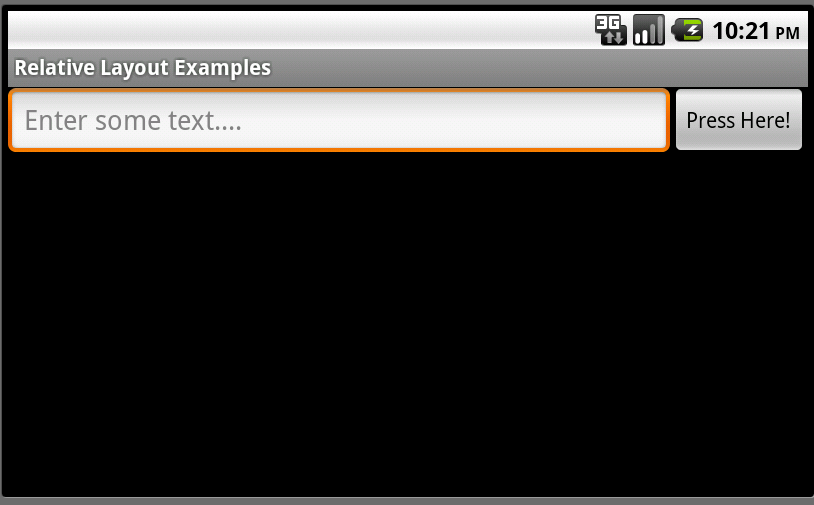
Relative layouts are best explained using an example. Let’s say we want to design a screen with an EditText control and a Button control. We want the Button to display to the right of the EditText control. Therefore, we could define a relative layout with two child controls: the EditText and the Button. The EditText control might have a rule that says: align this control in the to the left-hand side of the parent control (the layout) and to the left of a second control-a Button control. Meanwhile, the Button control might have a rule that says: align this control to the right-hand side of the parent control (the layout).

The following figures show just such a relative layout, displayed in portrait or landscape mode. The relative layout has two child controls: an EditText control and a Button control.

The most convenient and maintainable way to design application user interfaces is by creating XML layout resources. This method greatly simplifies the UI design process, moving much of the static creation and layout of user interface controls and definition of control attributes, to the XML, instead of littering the code.

XML layout resources must be stored in the /res/layout project directory hierarchy. Let’s take a look at the relative layout introduced in the previous section. This layout resource file, aptly named /res/layout/relative.xml, is defined in XML as follows:

Recall that, from within the Activity, only a single line of code within the onCreate() method is necessary to load and display a layout resource on the screen. If the layout resource was stored in the /res/layout/relative.xml file, that line of code would be:

This relative layout has its width and height set to fill the screen and three rules configured on its child controls:

  • EditText01: Align to the left-hand side of the layout
  • EditText01: Display to the left of Button01
  • Button01: Align to the right-hand side of the layout

You can also programmatically create and configure relative layouts. This is done using the RelativeLayout class (android.widget.Relative). You’ll find the child-specific parameters in the RelativeLayout.LayoutParams class. Also, the typical layout parameters (android.view.ViewGroup.LayoutParams), such as layout_height and layout_width, as well as margin parameters (ViewGroup.MarginLayoutParams), still apply to RelativeLayout objects.
Instead of loading a layout resource directly using the setContentView() method as shown earlier, you must instead build up the screen contents in Java and then supply a parent layout object which contains all the control contents to display as child views to the setContentView() method. In this case, your parent layout would be the relative layout.
For example, the following code illustrates how to programmatically have an Activity instantiate a RelativeLayout and place a TextView and a Button control within it in its onCreate() method, much like the one shown in the previous section:

Let’s take a closer look at the Java code listing above. First we create an EditText control as normal. We give it some RelativeLayout parameters, and then set its rules. In this case, we create two rules for the EditText control.

Next, we create a Button control and set its rule (align to the right-hand edge of the parent layout). Finally, we create a RelativeLayout object, set its parameters, add the two child controls using the addView() method and load the relative layout to display using the setContentView() method.

As you can see, the code can rapidly grow in size as more controls are added to the screen. For organization and maintainability, defining and using layouts programmatically is best left for the odd case rather than the norm.

Now let’s talk a bit about the attributes that help configure a relative layout and its child controls. Some specific attributes apply to relative layouts-namely the child rules, including:

  • Rules for child control centering within the parent layout, including: center horizontally, center vertically, or both.
  • Rules for child control alignment within the parent layout, including: align with top, bottom, left or right edge of another control.
  • Rules for child control alignment in relation to other child controls, including: align with top, bottom, left or right edge.
  • Rules for child control placement in relation to other child controls, including: placement to the left or right of a specific control, or above or below another control.

Also, general ViewGroup-style attributes apply to relative layouts. These include:

  • Generic Layout Parameters such as layout_height (required) and layout_width (required) (class: ViewGroup.LayoutParams)
  • Margin Layout Parameters such as margin_top, margin_left, margin_right and margin_bottom (class: ViewGroup. MarginLayoutParams)
  • Layout Parameters such as layout_height and layout_width (class: ViewGroup.LayoutParams)

Now let’s put some of these rules into action!

Let’s look at a more complex screen design. For the purposes of this exercise, we will start by looking at the final screen design, and then will work backwards, discussing the relative layout features and rules used to achieve this final result.

Let’s say we want to design a screen that looks like this:

In order to design this screen using a relative layout, continue with the following steps.

First, define a relative layout in your XML resource file. Since you want this layout to control the contents of the entire screen, set its height and width attributes to fill_parent. Your XML resource file should now look something like this:

Next, we determine what child controls we need. In this case, we need seven TextView controls (one for each color). Configure them as you normally would, setting text attributes to strings, background colors, font sizes, etc. Place each of these controls within your relative layout.

Next, we define the rules for each child control, in order to get them to draw in the appropriate places:

  • The RED TextView control has no specific settings configured. By default, this control will be drawn in the upper left-hand corner of the parent layout.
  • The ORANGE TextView control is centered horizontally in the parent layout. Because all controls default to the top left-hand corner of the screen, this effectively anchors the control to the top middle edge of the parent layout.
  • The YELLOW TextView control is aligned to the right-hand edge of the parent layout. Because all controls default to the top left-hand corner of the screen, this effectively anchors the control to the top right corner of the parent layout.
  • The GREEN TextView control is centered vertically within the parent layout and configured to display to the left of the BLUE TextView control.
  • The BLUE TextView control is aligned to the center (horizontally and vertically) of the parent control. This displays it in the middle of the screen.
  • The INDIGO TextView control is centered vertically within the parent layout and configured to display to the right of the BLUE TextView control.
  • The VIOLET TextView control is aligned to the bottom edge of the parent layout. It’s width is also set to fill the parent, allowing it to stretch across the bottom edge of the screen.

If you define these rules in your XML resource file, it should now look something like this:

Here are some tips for working with relative layouts.

  • Relative layout child controls must have unique id attributes for rules to apply correctly.
  • Watch out for circular rules. Circular rules occur when two controls have rules that point at one another. If you include a circular set of rules in your layout design, you’ll get the following error:

    It can be helpful to recall that the relative layout rules are applied in one pass.

  • Keep your relative layout rules to a minimum. This helps reduce the chance of circular rules and makes your layout more manageable and flexible.
  • As usual, remember to test that your layout design works as expected in both portrait and landscape modes, as well as on different screen sizes and resolutions.
  • Use relative layouts instead of nesting linear layouts to improve application performance and responsiveness.

Android application user interfaces are defined using layouts, and relative layouts are one of the layout types used to make application screens that are both flexible and powerful. The relative layout allows child controls to be organized in relative to one another and relative to the parent (edges and centered vertically and horizontally). Once you master the rules of how relative layouts, they can be incredibly versatile, allowing you to create complex layouts without the overhead of nesting different layouts, thus improving performance.

Can the Android Layout folder contain subfolders?

The answer is no.

I would like to draw your attention towards this book Pro Android 2 that states:

It is also worth noting a few constraints regarding resources. First, Android supports only a linear list of files within the predefined folders under res. For example, it does not support nested folders under the layout folder (or the other folders under res).

Second, there are some similarities between the assets folder and the raw folder under res. Both folders can contain raw files, but the files within raw are considered resources and the files within assets are not.

Note that because the contents of the assets folder are not considered resources, you can put an arbitrary hierarchy of folders and files within it.

Using lists in Android (ListView) – Tutorial

Lars Vogel

Version 4.6

20.11.2014

Using Android ListView, ListActivity and ListFragment

This tutorial describes how to use the ListView view together with Activities and Fragments in Android. The tutorial is based on Eclipse 4.4, Java 1.7 and Android 5.0.

1. Android and Lists

1.1. Using lists in Android

The display of elements in a list is a very common pattern in mobile applications. The user sees a list of items and can scroll through them. Such an activity is depicted in the following picture.

Listview example

Typically the user interacts with the list via the action bar, for example, via a refresh button. Individual list items can be selected. This selection can update the action bar or can trigger a detailed screen for the selection. The following graphic sketches that. On the selection of a list item another activity is started.

Listview example

1.2. Views for handling lists

Android provides the ListView and the ExpandableListView classes which is capable of displaying a scrollable list of items.

The ExpandableListView class supports a grouping of items.

1.3. Possible input types for lists

The input to the list (items in the list) can be arbitrary Java objects. The adapter extracts the correct data from the data object and assigns this data to the views in the row of the ListView.

These items are typically called the data model of the list. An adapter can receive data as input.

1.4. Adapters

An adapter manages the data model and adapts it to the individual entries in the widget. An adapter extends the BaseAdapter class.

Every line in the widget displaying the data consists of a layout which can be as complex as you want. A typical line in a list has an image on the left side and two text lines in the middle as depicted in the following graphic.

Listview example layout

A layout file for a such a line might look like the following.

<RelativeLayout xmlns:android="http://schemas.android.com/apk/res/android"
    android:layout_width="fill_parent"
    android:layout_height="?android:attr/listPreferredItemHeight"
    android:padding="6dip" >

    <ImageView
        android:id="@+id/icon"
        android:layout_width="wrap_content"
        android:layout_height="fill_parent"
        android:layout_alignParentBottom="true"
        android:layout_alignParentTop="true"
        android:layout_marginRight="6dip"
        android:contentDescription="TODO"
        android:src="@drawable/ic_launcher" />

    <TextView
        android:id="@+id/secondLine"
        android:layout_width="fill_parent"
        android:layout_height="26dip"
        android:layout_alignParentBottom="true"
        android:layout_alignParentRight="true"
        android:layout_toRightOf="@id/icon"
        android:ellipsize="marquee"
        android:singleLine="true"
        android:text="Description"
        android:textSize="12sp" />

    <TextView
        android:id="@+id/firstLine"
        android:layout_width="fill_parent"
        android:layout_height="wrap_content"
        android:layout_above="@id/secondLine"
        android:layout_alignParentRight="true"
        android:layout_alignParentTop="true"
        android:layout_alignWithParentIfMissing="true"
        android:layout_toRightOf="@id/icon"
        android:gravity="center_vertical"
        android:text="Example application"
        android:textSize="16sp" />

</RelativeLayout>

The adapter would inflate the layout for each row in its getView() method and assign the data to the individual views in the row.

The adapter is assigned to the ListView via the setAdapter method on the ListView object.

Tip

Adapters are not only used by ListView, but also by other views which extend AdapterView as, for example, Spinner, GridView, Gallery and StackView.

1.5. Filtering and sorting

Filtering and sorting of the data is handled by the adapter. You need to implement the logic in your custom adapter implementation.

1.6. Data updates in the adapter

The notifyDataSetChanged() method on the adapter is called if the data has changed or if new data is available.

The notifyDataSetInvalidated() method is called if the data is not available anymore.

1.7. Listener

To react to selections in the list, set an OnItemClickListener to your ListView.

listView.setOnItemClickListener(new OnItemClickListener() {
  @Override
  public void onItemClick(AdapterView<?> parent, View view,
    int position, long id) {
    Toast.makeText(getApplicationContext(),
      "Click ListItem Number " + position, Toast.LENGTH_LONG)
      .show();
  }
});

2. Default adapter

2.1. Default platform adapter

Android provides default adapter implementations; the most important are ArrayAdapter and CursorAdapter.

ArrayAdapter can handle data based on Arrays or java.util.List.

SimpleCursorAdapter can handle database related data.

2.2. Using ArrayAdapter

The ArrayAdapter class can handle a list or array of Java objects as input. Every Java object is mapped to one row. By default, it maps the toString() method of the object to a view in the row layout.

You can define the ID of the view in the constructor of the ArrayAdapter otherwise the android.R.id.text1 ID is used as default.

The ArrayAdapter class allows to remove all elements in its underlying data structure with the clear() method call. You can then add new elements via the add() method or a Collection via the addAll() method.

You can also directly modify the underlying data structure and call the notifyDataSetChanged() method on the adapter to notify it about the changes in data.

Warning

If you want to change the data in your adapter, the underlying data structure must support this operation. This is, for example, the case for the ArrayList class, but not for arrays.

2.3. ListView example with ArrayAdapter

The following listing shows a layout file called activity_listviewexampleactivity.xml which includes a ListView.

<ListView xmlns:android="http://schemas.android.com/apk/res/android"
    android:id="@+id/listview"
    android:layout_width="wrap_content"
    android:layout_height="wrap_content" />

The following example shows the usage of the ListView view in an activity. It uses a default layout from the Android platform for the row layout. It also demonstrates the removal of list items and uses animations for the removal.

package com.vogella.android.listview.withanimation;

public class ListViewExampleActivity extends Activity {

  @Override
  protected void onCreate(Bundle savedInstanceState) {
    super.onCreate(savedInstanceState);
    setContentView(R.layout.activity_listviewexampleactivity);

    final ListView listview = (ListView) findViewById(R.id.listview);
    String[] values = new String[] { "Android", "iPhone", "WindowsMobile",
        "Blackberry", "WebOS", "Ubuntu", "Windows7", "Max OS X",
        "Linux", "OS/2", "Ubuntu", "Windows7", "Max OS X", "Linux",
        "OS/2", "Ubuntu", "Windows7", "Max OS X", "Linux", "OS/2",
        "Android", "iPhone", "WindowsMobile" };

    final ArrayList<String> list = new ArrayList<String>();
    for (int i = 0; i < values.length; ++i) {
      list.add(values[i]);
    }
    final StableArrayAdapter adapter = new StableArrayAdapter(this,
        android.R.layout.simple_list_item_1, list);
    listview.setAdapter(adapter);

    listview.setOnItemClickListener(new AdapterView.OnItemClickListener() {

      @Override
      public void onItemClick(AdapterView<?> parent, final View view,
          int position, long id) {
        final String item = (String) parent.getItemAtPosition(position);
        view.animate().setDuration(2000).alpha(0)
            .withEndAction(new Runnable() {
              @Override
              public void run() {
                list.remove(item);
                adapter.notifyDataSetChanged();
                view.setAlpha(1);
              }
            });
      }

    });
  }

  private class StableArrayAdapter extends ArrayAdapter<String> {

    HashMap<String, Integer> mIdMap = new HashMap<String, Integer>();

    public StableArrayAdapter(Context context, int textViewResourceId,
        List<String> objects) {
      super(context, textViewResourceId, objects);
      for (int i = 0; i < objects.size(); ++i) {
        mIdMap.put(objects.get(i), i);
      }
    }

    @Override
    public long getItemId(int position) {
      String item = getItem(position);
      return mIdMap.get(item);
    }

    @Override
    public boolean hasStableIds() {
      return true;
    }

  }

}

3. Custom adapter implementations

3.1. Developing a custom adapter

The ArrayAdapter is limited as it supports only the mapping of toString() to one view in the row layout. To control the data assignment and to support several views, you have to create your custom adapter implementation.

For this you would extend an existing adapter implementation or subclass the BaseAdapter class directly.

Tip

Frequently you extend ArrayAdapter to write a custom adapter, as this is simpler than extending BaseAdapter directly.

3.2. Preparing a row for the list

The adapter needs to create a layout for each row of the list. The ListView instance calls the getView() method on the adapter for each data element. In this method the adapter creates the row layout and maps the data to the views in the layout.

This root of the layout is typically a ViewGroup (layout manager) and contains several other views , e.g., an ImageView and a TextView. The following graphic shows a list with different layouts for odd and even rows.

Adapter provides data and defines the layout per row

Within the getView() method you would inflate an XML based layout and then set the content of the individual views based on the Java object for this row. To inflate the XML layout file, you can use the LayoutInflator system service.

Note

This layout inflator service can get accessed via the getLayoutInflator() method of the activity or via the context.getSystemService(Context.LAYOUT_INFLATER_SERVICE) method call.

After the adapter inflated the layout, it searches for the relevant views in the layout and fills them with the data. The individual elements in the layout can be found via the findViewById() method call on the top level view.

3.3. Example for a custom adapter

The following code shows an implementation of a custom adapter. This adapter assumes that you have two png files (no.png and yes.png) in one of your res/drawable folders. The coding inflates an XML layout file, finds the relevant views in the layout and sets their content based on the input data.

package de.vogella.android.listactivity;

import android.content.Context;
import android.view.LayoutInflater;
import android.view.View;
import android.view.ViewGroup;
import android.widget.ArrayAdapter;
import android.widget.ImageView;
import android.widget.TextView;

public class MySimpleArrayAdapter extends ArrayAdapter<String> {
  private final Context context;
  private final String[] values;

  public MySimpleArrayAdapter(Context context, String[] values) {
    super(context, R.layout.rowlayout, values);
    this.context = context;
    this.values = values;
  }

  @Override
  public View getView(int position, View convertView, ViewGroup parent) {
    LayoutInflater inflater = (LayoutInflater) context
        .getSystemService(Context.LAYOUT_INFLATER_SERVICE);
    View rowView = inflater.inflate(R.layout.rowlayout, parent, false);
    TextView textView = (TextView) rowView.findViewById(R.id.label);
    ImageView imageView = (ImageView) rowView.findViewById(R.id.icon);
    textView.setText(values[position]);
    // change the icon for Windows and iPhone
    String s = values[position];
    if (s.startsWith("iPhone")) {
      imageView.setImageResource(R.drawable.no);
    } else {
      imageView.setImageResource(R.drawable.ok);
    }

    return rowView;
  }
}

3.4. Updating the data model from the adapter

The row can also contain views which interact with the underlying data model via the adapter. For example, you can have a Checkbox in your row layout and if the Checkbox is selected, the underlying data is changed.

4. ListActivity and ListFragment

4.1. Default container for using ListView

Android provides specialized fragment and activity classes to simplify list handling.

The classes are the ListActivity class if you want to use lists in activities and the the ListFragment class if you want to use lists in fragments.

You do not have to assign a layout to these elements. If you do not define a layout, the activity or fragment contains a single ListView by default. ListActivity and ListFragment also allow you to override a onListItemClick() method for handling selection of list items.

Both classes allow you to set the adapter to the default ListView via the setListAdapter() method.

The following example code shows a simple ListFragment implementation.

package de.vogella.android.fragments;

import android.content.Intent;
import android.os.Bundle;
import android.view.View;
import android.widget.ArrayAdapter;
import android.widget.ListView;
import android.app.ListFragment;

public class MyListFragment extends ListFragment {

  @Override
  public void onActivityCreated(Bundle savedInstanceState) {
    super.onActivityCreated(savedInstanceState);
    String[] values = new String[] { "Android", "iPhone", "WindowsMobile",
        "Blackberry", "WebOS", "Ubuntu", "Windows7", "Max OS X",
        "Linux", "OS/2" };
    ArrayAdapter<String> adapter = new ArrayAdapter<String>(getActivity(),
        android.R.layout.simple_list_item_1, values);
    setListAdapter(adapter);
  }

  @Override
  public void onListItemClick(ListView l, View v, int position, long id) {
    // do something with the data
  }
}

The next example code demonstrates the usage of a ListActivity.

package de.vogella.android.listactivity;

import android.app.ListActivity;
import android.os.Bundle;
import android.widget.ArrayAdapter;

public class MyListActivity extends ListActivity {
  public void onCreate(Bundle icicle) {
    super.onCreate(icicle);
    String[] values = new String[] { "Android", "iPhone", "WindowsMobile",
        "Blackberry", "WebOS", "Ubuntu", "Windows7", "Max OS X",
        "Linux", "OS/2" };
    ArrayAdapter<String> adapter = new ArrayAdapter<String>(this,
        android.R.layout.simple_list_item_1, values);
    setListAdapter(adapter);
  }
}

4.2. ListActivity and custom layout

You can use a custom layout with ListActivity or ListFragment. In this case the fragment or activity searches in the provided layout for a ListView with the pre-defined android:id attribute set to @android:id/list. This usage is demonstrated by the following code snippet.

<ListView
  android:id="@android:id/list"
  android:layout_width="match_parent"
  android:layout_height="wrap_content" >
</ListView>

Warning

If you do not use this ID or do not include a ListView into your layout, the application crashes once you try to display the activity or the fragment.

4.3. Placeholder for an empty list

You can also use a view with the @android:id/empty ID in your layout. The corresponding activity and fragment shows this view automatically if the ListView is empty and hides it otherwise. For example, you could display an error message in such a view.

5. Exercise: Using ListView and ListActivity

The following exercise demonstrates how to use a ListView in an ListActivity. You use the predefined ArrayAdapter class and an existing Android layout for the rows.

Create a new Android project called de.vogella.android.listactivity with the activity called MyListActivity.

Change MyListActivity class based on the the following code example. Note that the setContentView() method is not used.

package de.vogella.android.listactivity;

import android.app.ListActivity;
import android.os.Bundle;
import android.view.View;
import android.widget.ArrayAdapter;
import android.widget.ListView;
import android.widget.Toast;

public class MyListActivity extends ListActivity {
  public void onCreate(Bundle icicle) {
    super.onCreate(icicle);
    String[] values = new String[] { "Android", "iPhone", "WindowsMobile",
        "Blackberry", "WebOS", "Ubuntu", "Windows7", "Max OS X",
        "Linux", "OS/2" };
    ArrayAdapter<String> adapter = new ArrayAdapter<String>(this,
        android.R.layout.simple_list_item_1, values);
    setListAdapter(adapter);
  }

  @Override
  protected void onListItemClick(ListView l, View v, int position, long id) {
    String item = (String) getListAdapter().getItem(position);
    Toast.makeText(this, item + " selected", Toast.LENGTH_LONG).show();
  }
}
ListActivity shows the items

6. Exercise: ListActivity with own layout

In our example your will define your layout for the rows and use it in your adapter.

Create the rowlayout.xml layout file in the res/layout folder of the de.vogella.android.listactivity project.

<?xml version="1.0" encoding="utf-8"?>
<LinearLayout xmlns:android="http://schemas.android.com/apk/res/android"
    android:layout_width="wrap_content"
    android:layout_height="wrap_content" >

    <ImageView
        android:id="@+id/icon"
        android:layout_width="22px"
        android:layout_height="22px"
        android:layout_marginLeft="4px"
        android:layout_marginRight="10px"
        android:layout_marginTop="4px"
        android:src="@drawable/ic_launcher" >
    </ImageView>

    <TextView
        android:id="@+id/label"
        android:layout_width="wrap_content"
        android:layout_height="wrap_content"
        android:text="@+id/label"
        android:textSize="20px" >
    </TextView>

</LinearLayout>

Change your activity so that is using the new layout.

package de.vogella.android.listactivity;

import android.app.ListActivity;
import android.os.Bundle;
import android.view.View;
import android.widget.ArrayAdapter;
import android.widget.ListView;
import android.widget.Toast;

public class MyListActivity extends ListActivity {
  public void onCreate(Bundle icicle) {
    super.onCreate(icicle);
    String[] values = new String[] { "Android", "iPhone", "WindowsMobile",
        "Blackberry", "WebOS", "Ubuntu", "Windows7", "Max OS X",
        "Linux", "OS/2" };
    // use your custom layout
    ArrayAdapter<String> adapter = new ArrayAdapter<String>(this,
        R.layout.rowlayout, R.id.label, values);
    setListAdapter(adapter);
  }

  @Override
  protected void onListItemClick(ListView l, View v, int position, long id) {
    String item = (String) getListAdapter().getItem(position);
    Toast.makeText(this, item + " selected", Toast.LENGTH_LONG).show();
  }
}
Displaying a ListView with a own layout

7. Tutorial: Implementing your own adapter

The following uses two images “no.png” and “ok.png”. I placed it in the “res/drawable-mdpi” folder. You must create your own icons. In case you do not find any icons just copy “icon.png” and use a drawing program to change it a little bit.

Create the class MySimpleArrayAdapter which will serve as our adapter.

package de.vogella.android.listactivity;

import android.content.Context;
import android.view.LayoutInflater;
import android.view.View;
import android.view.ViewGroup;
import android.widget.ArrayAdapter;
import android.widget.ImageView;
import android.widget.TextView;

public class MySimpleArrayAdapter extends ArrayAdapter<String> {
  private final Context context;
  private final String[] values;

  public MySimpleArrayAdapter(Context context, String[] values) {
    super(context, R.layout.rowlayout, values);
    this.context = context;
    this.values = values;
  }

  @Override
  public View getView(int position, View convertView, ViewGroup parent) {
    LayoutInflater inflater = (LayoutInflater) context
        .getSystemService(Context.LAYOUT_INFLATER_SERVICE);
    View rowView = inflater.inflate(R.layout.rowlayout, parent, false);
    TextView textView = (TextView) rowView.findViewById(R.id.label);
    ImageView imageView = (ImageView) rowView.findViewById(R.id.icon);
    textView.setText(values[position]);
    // Change the icon for Windows and iPhone
    String s = values[position];
    if (s.startsWith("Windows7") || s.startsWith("iPhone")
        || s.startsWith("Solaris")) {
      imageView.setImageResource(R.drawable.no);
    } else {
      imageView.setImageResource(R.drawable.ok);
    }

    return rowView;
  }
}

To use this adapter, change the activity to the following.

package de.vogella.android.listactivity;

import android.app.ListActivity;
import android.os.Bundle;

public class MyListActivity extends ListActivity {
  public void onCreate(Bundle icicle) {
    super.onCreate(icicle);
    String[] values = new String[] { "Android", "iPhone", "WindowsMobile",
        "Blackberry", "WebOS", "Ubuntu", "Windows7", "Max OS X",
        "Linux", "OS/2" };
    MySimpleArrayAdapter adapter = new MySimpleArrayAdapter(this, values);
    setListAdapter(adapter);
  }

}

If you run this example you should get a list with different icons for the certain elements.

ListView with different elements for each row